Start on Home: import existing details, choose Global Routing, then verify the connection with a real request.
iPhone / iPadAdd Server / SubscribeConnection and Troubleshooting
The steps below cover iPhone and iPad. The interface may vary by device and app updates; use the field labels shown in your current app. Screenshots help you identify each screen and are not instructions to copy every value shown.
STEP 01 / IMPORT
Add Server and Subscribe: Import Existing Details
The goal is to make a selectable server entry appear on Home. Seeing an entry does not mean a connection has been established.
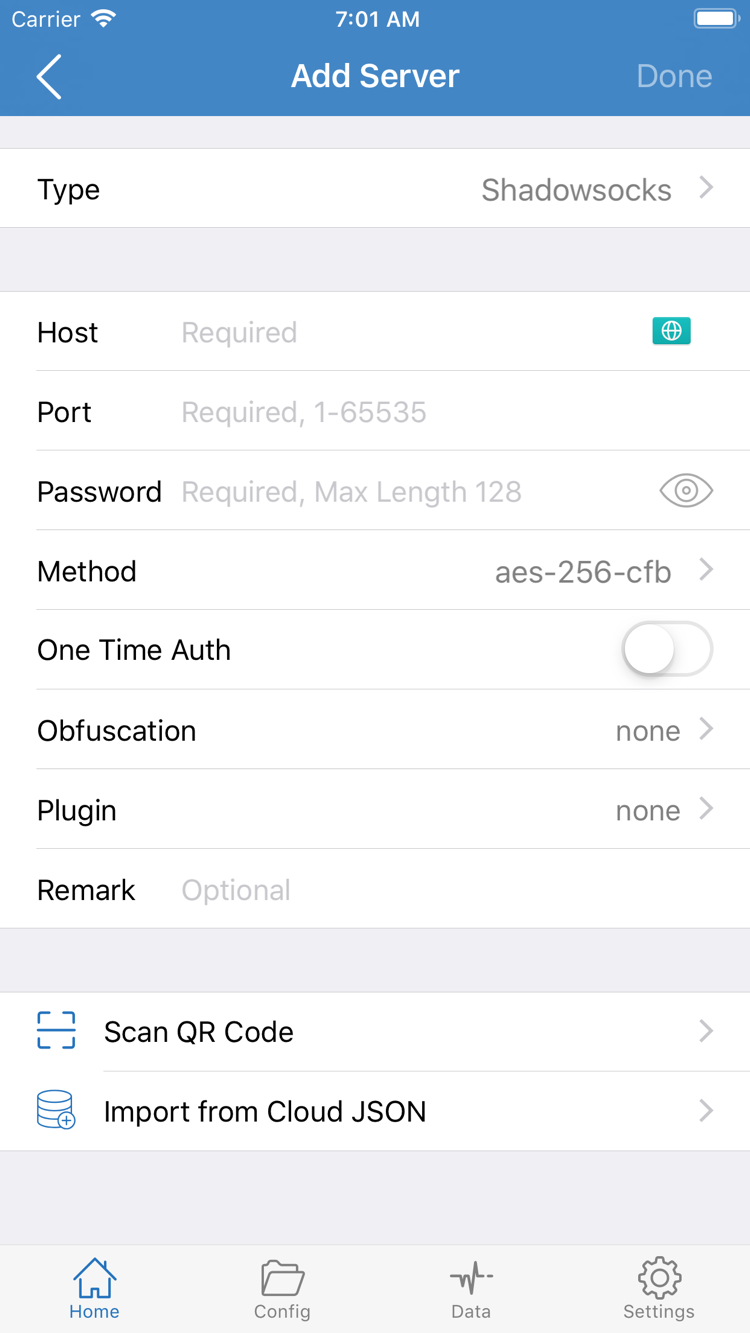
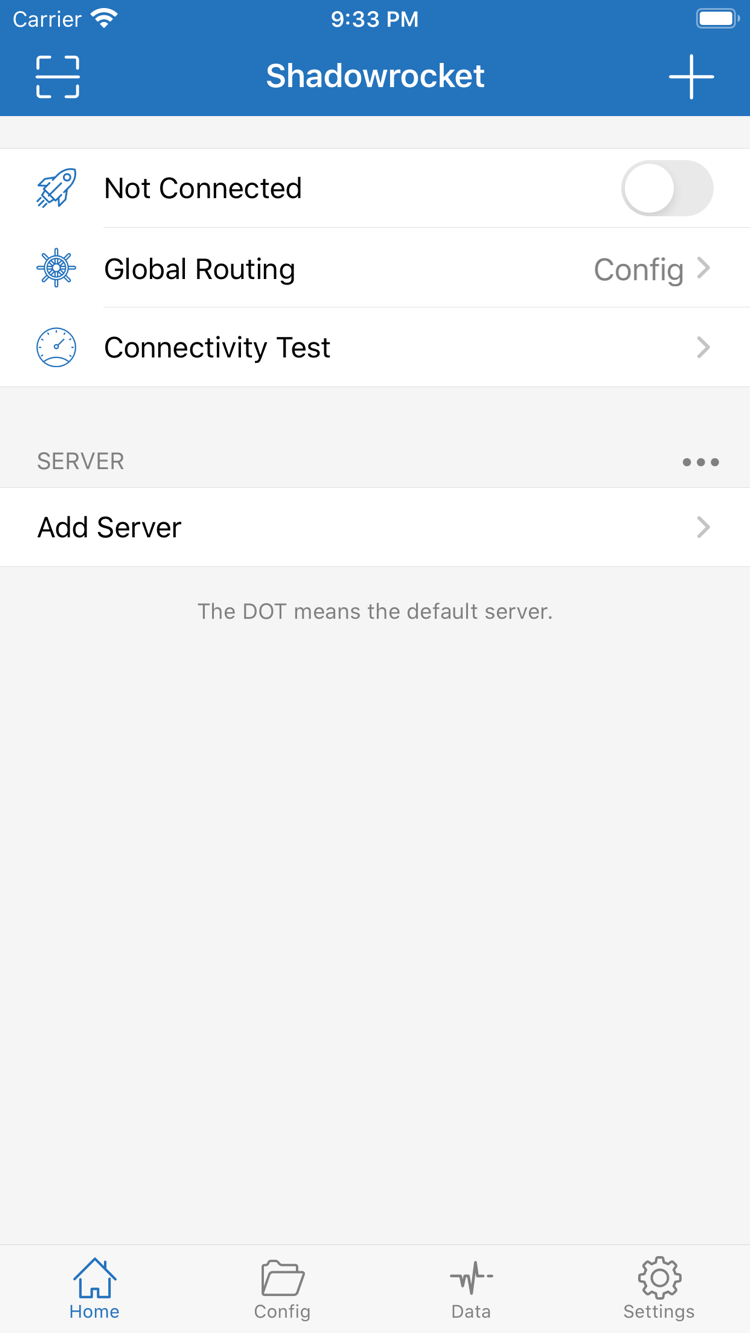
Open Shadowrocket and go to Home. First, check the SERVER group near the bottom. If this is your first time, tap Add Server to open the add screen; if you already have entries, you can add another from here. Identify which details you have: a subscription link that retrieves a server list, or a set of specific server, port, and authentication details. These use different options. Do not paste a full subscription link into Host.
Have a Subscription Link? Choose Subscribe
Tap Type in Add Server and choose Subscribe to open the subscription URL form. Paste the full link from your service provider into the URL field. Make sure it has no extra spaces or line breaks and has not been truncated by a messaging app. If there is a remarks field, use a name that helps you identify its purpose; the remark is only a local label and does not replace the authentication details in the link.
After saving, return to Home and wait for the list to load, then expand the relevant group to view its server entries. If you see a subscription name but no server entries, check the update result first rather than repeatedly toggling the connection switch. To refresh it later, use the app's update option for that subscription, then check that the entries are still present. If the address has expired, the service has ended, or the returned data is in an unsupported format, check the original service details. Buying the app again will not fix these issues.
Have Server Details? Enter Each Field for the Selected Type
To add a server manually, select the Type that exactly matches your server details, then enter Host and Port. Host is the server address, without a web path. Port is specified by the server; do not guess it based on the protocol name. For example, with Shadowsocks, carefully check Password and Method. Other Types may show different authentication, TLS, or transport fields. Enter the details for the selected protocol; do not reuse fields from another protocol.
Scan QR Code at the bottom of the page to read an existing QR code. Use Import from Cloud JSON to import details in the corresponding format. After scanning, check Type, Host, Port, and authentication fields; a QR code being read successfully does not guarantee its settings are valid. If the system asks for camera access, allow it only if you plan to scan a code. Manual entry does not require camera access.
Before saving, check the details once more. Return to Home and confirm the entry name and group. Start with one complete server entry to avoid confusion about which one is in use after importing multiple sets of details. For now, leave advanced Settings unchanged. The next step covers Global Routing and how it relates to configuration files.
Add Server: Choose the Type first, then enter the required details for that protocol. Scan QR Code and Import from Cloud JSON appear at the bottom.
STEP 02 / ROUTING
Global Routing: Config, Proxy, and Direct
Global Routing determines how requests are routed. Server entries hold connection details; Config holds rules and related settings.
Return to Home and tap Global Routing to check the current mode. This guide refers to the three options as Config, Proxy, and Direct. Check the current selection before changing it; do not assume the app opens in a particular mode. Config is the recommended everyday choice, provided you have confirmed that the active configuration meets your needs.
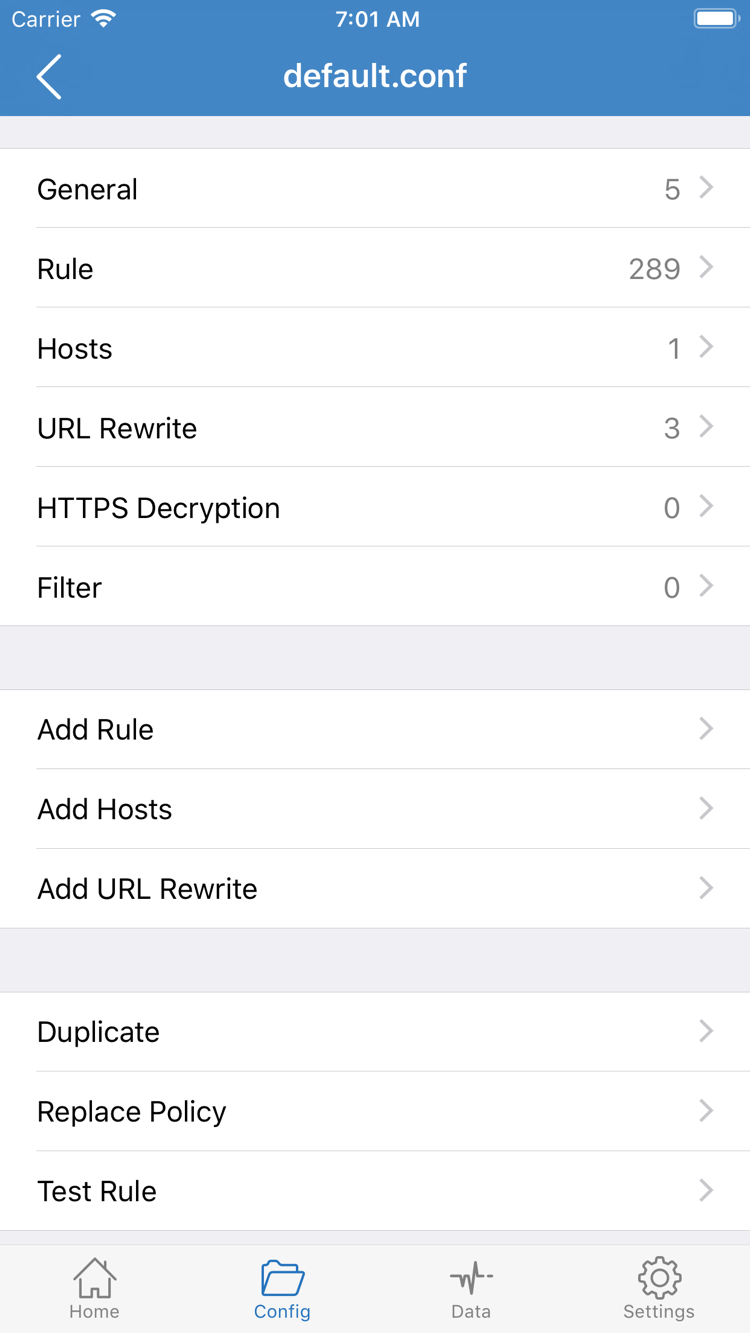
Config routes requests according to the rules in the active file. If you have a usable configuration, open Config, confirm which file is selected, then open it to review sections such as General and Rule. Rules in Rule are usually evaluated from top to bottom; the first matching rule determines the policy. FINAL handles requests that did not match an earlier rule. Viewing a file does not make it active; return to the list and confirm which file is selected.
Proxy routes requests through a proxy and can be used briefly for an initial comparison test to help distinguish a server connection issue from a routing rule issue. It does not fix problems automatically: incorrect Host or authentication details, or an unavailable service, can still cause a failure. Direct routes requests directly and can be used as a baseline network comparison. A target's successful response in Direct does not prove that the proxy server is working.
If you already have a configuration, leave other settings unchanged and connect using Config first. If you only have server details and have not confirmed the current configuration, use Proxy for one clear connection test, then review Config afterward. Do not enable URL Rewrite or HTTPS Decryption just to make your first connection; these sections are not required for a standard connection and have their own use cases.
The snippet below illustrates rule structure only; you do not need to paste it during initial setup. The first line matches a domain suffix, and the second sets a final policy. The example domain is not a test service and contains no connection details.
DOMAIN-SUFFIX,example.com,DIRECT
FINAL,PROXY
For details on editing rules, DNS, and policies, see the Settings and Configuration Options Guide. For this guide, note the current mode, configuration, and selected server. Recording all three before connecting makes it easier to reproduce the same conditions when troubleshooting.
Config: Review matching entries under Rule. Editing a configuration file and choosing Global Routing on Home are separate actions in different places.
STEP 03 / CONNECTION
Home: Select a Server and Connect
The connection switch starts or stops the system network extension. System authorization on first connection and server authentication are separate steps.
Return to Home and select the server you want in the SERVER group. Confirm that the selection indicator is on the intended entry. If the group contains several entries, do not assume the active one based on its position in the list. Check that Global Routing still shows the mode you chose, then turn on the connection switch near Not Connected at the top of the screen.
On your first connection, the system may ask to add a VPN configuration. This is system authorization for the app to create a network connection, not a prompt to buy the app again or update a subscription. Read the app name in the prompt and make sure it was triggered by your action, then approve as required. Your device may ask for a passcode or other system authentication. After approving, return to Shadowrocket and check whether the status at the top has changed.
If you cancel, the app cannot complete the connection using this process. When you're ready, turn the switch on again and complete system authorization. If your device is managed by an organization, configuration restrictions may affect authorization; follow your device management requirements rather than repeatedly changing the server password. Completing system authorization only allows the network extension to run; it does not confirm that the remote server is responding correctly.
After the status changes, wait briefly and check whether it disconnects immediately before moving on to verification. The connection switch staying on, a VPN indicator appearing in the system, and the target service being accessible are different outcomes. None alone is a complete verification. If the switch turns off immediately, note the prompt and current mode. Avoid toggling it rapidly, as that can make diagnostic records harder to interpret.
For your first manual connection, leave On Demand unconfigured. It triggers connections based on conditions; it is not a setting that must be enabled for the first connection. If automatic connection conditions are already set, note their status first. Otherwise, an automatic trigger after you turn the switch off manually may look like the switch is malfunctioning. Configure automatic behavior separately after the connection is stable and verified.
Home: Check connection status at the top, Global Routing and Connectivity Test in the middle, and server entries in SERVER below.
STEP 04 / VERIFICATION
Connectivity Test: Check Real Requests
Consider test results, actual access, and the rule path together. A single duration value is not enough to verify a connection.
Test the Connection, Then Access a Target
Tap Connectivity Test on Home, wait for the test to finish, and note whether it succeeds, times out, or shows another message. Results depend on the test method, target, and current network. A successful test does not mean every domain or protocol is accessible; a failed test should be assessed alongside actual requests.
Next, open a target service you are authorized to use and perform a specific action, such as reloading a page. Do not rely on content that may already be cached; refresh the page or reopen the target app if needed. Test one item at a time and note when it happened and any error message so you can find the corresponding request in connection records.
Then Check the Request Route
With Config selected, some requests matching DIRECT are routed as intended; this does not mean the connection failed. Check Log or connection records in the app and review the domain, matched rule, and policy. The location of Log and the fields shown may vary in your version of the app. If a request used a different policy than expected, check the active Config first rather than switching servers.
To compare results, change only Global Routing: test the same target with Proxy, then restore the original mode. If Proxy works but Config does not behave as expected, check the rules and name resolution first. If both fail, check the server and your network. Keep the target and network the same for each comparison so the results are meaningful.
Test durations shown in a subscription list are primarily for comparison under the current test conditions. They are not actual download speeds or a guarantee of stability. After your first successful connection, note the working server, Global Routing mode, and configuration file name. Use this verified setup as a restore point when changing settings to help narrow down future issues.
STEP 05 / DIAGNOSTICS
Settings: Troubleshooting Common Failures
Troubleshoot by isolating one layer at a time. Change one setting, retest, then decide whether to keep or revert it.
Check Your Network and Import Results First
A working network is essential for any connection. Turn off the connection switch, then try a service that normally works directly over your current Wi-Fi or cellular network. If that fails too, troubleshoot network access first. Public Wi-Fi may require you to sign in before subscription updates and server connections can work. When comparing networks, record the results on each one; do not compare test durations from different networks directly.
If there are no selectable entries in SERVER, the issue is still with importing. Check that the Subscribe URL is complete, that the update did not show an error, and that the original service details are still valid. If the list is present but one entry fails, open it and check Type, Host, Port, and authentication details. If TLS or transport settings are present, check those fields too. If the device date and time are significantly incorrect, correct them before retesting connections that use certificates.
Then Check the Mode, Rules, and DNS
If the connection stays active but the target is unavailable, first make sure you are not still in Direct. If Proxy and Config produce different results, check the active file and the order of rules, especially rules that match too early and the final FINAL rule. Do not edit a file that is not active and then use results from another file to judge whether the change worked.
DNS resolves domain names; a resolution failure is different from a server handshake failure. Check the DNS settings in the active configuration only if an error message or connection record points to name resolution. Do not replace all configuration values with addresses found online, and do not change DNS, rules, and server details at the same time. Keep the original values, change one item, then retest the same target. See the DNS and Diagnostics section of the Settings Guide for related fields and recommended values.
Finally, Check the Test Method and Automatic Connection
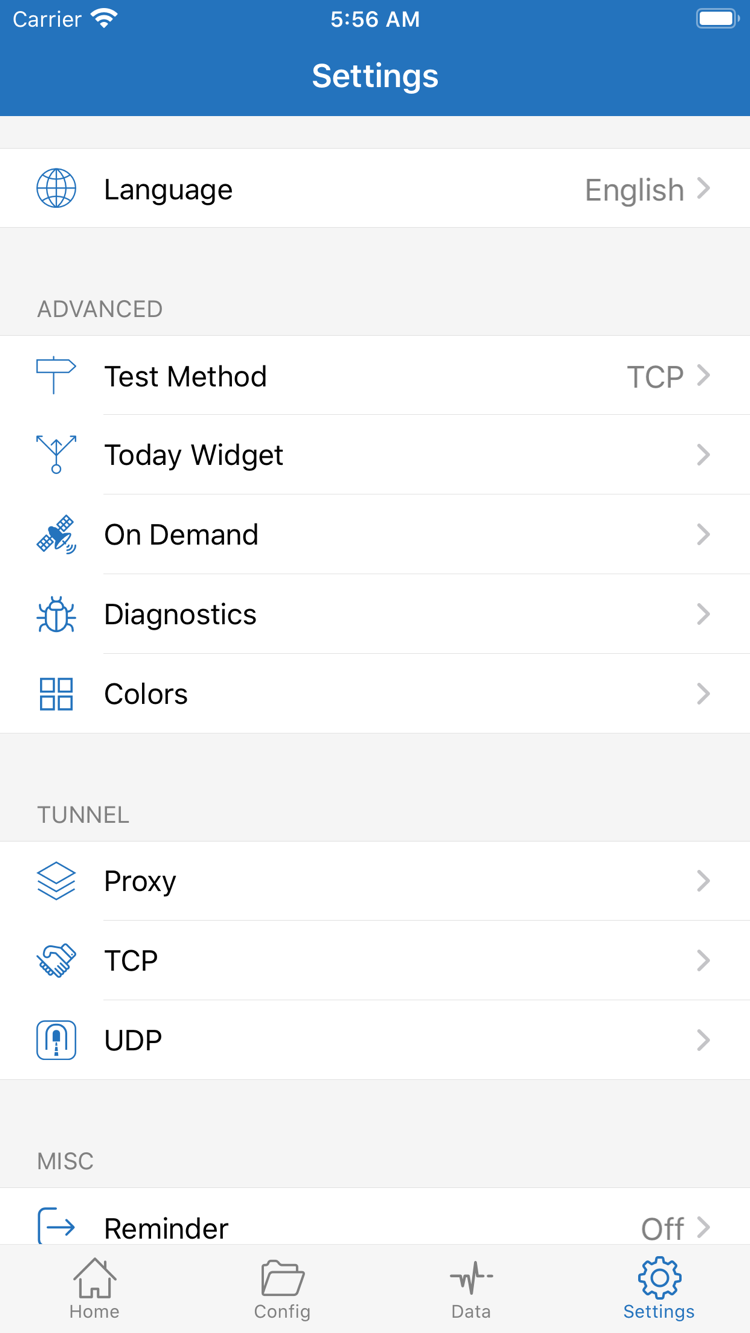
Open Settings and review Test Method and Diagnostics. Test Method affects how to interpret results; durations from different methods are not directly comparable. Diagnostics can help investigate an issue. The available tools and their locations depend on what is shown in your app. If you save diagnostic details, record the time, network, selected mode, and error text. You do not need to share your entire configuration.
If the connection behaves unexpectedly after you turn it off and reconnect, or after the network changes, check the On Demand conditions. On Demand can trigger a connection based on conditions, so distinguish automatic triggers from manual switching while troubleshooting. Sections such as Proxy, TCP, and UDP do not need adjustment for initial setup. Leave them unchanged unless you have a specific reason; defaults are shown in the current app.
If you need to ask your service provider about server status, share only the necessary error details and redact passwords, subscription URLs, authentication identifiers, and QR codes. If you can reproduce the failure consistently, see the Server Timeout and Connection Failure Troubleshooting Checklist. To understand or change settings, see the Settings Reference. Do not change every option at once during initial setup.
Settings: Check Test Method, On Demand, and Diagnostics based on the issue. Other advanced settings do not need to be changed for your first connection.
CHECKPOINT / NEXT REFERENCE
Setup Checklist
A complete setup check means you can select an existing entry, identify the active mode and configuration, keep the connection active, and access a real target as expected.
From here, adjust settings one at a time to meet your needs. The Settings Guide covers rule matching and FINAL, DNS, On Demand, and Log. For purchases, reinstalling, and restoring a previous purchase, see the App Store page.